0
0
 0
0
Windows Installer folder cleanup is becoming an important topic for many PC users as hidden system files can quietly consume large amounts of storage space without notice. In some cases, this folder can grow to tens of gigabytes, creating confusion about where disk space has gone.
While Windows is designed to manage these files automatically, long-term usage, repeated software installations, and updates can cause the Installer directory to expand significantly over time.
Windows Installer folder cleanup and why hidden files accumulate
The Windows Installer folder cleanup process begins with understanding what the folder actually does and why it exists in the first place.
What the Windows Installer folder stores
The Installer directory located in the Windows system folder contains important installation data used by applications.
It typically stores:
• MSI installer packages
• MSP patch files
• Update and repair data for installed applications
• Installation metadata for system recovery
These files help Windows repair, update, or uninstall software correctly when needed.
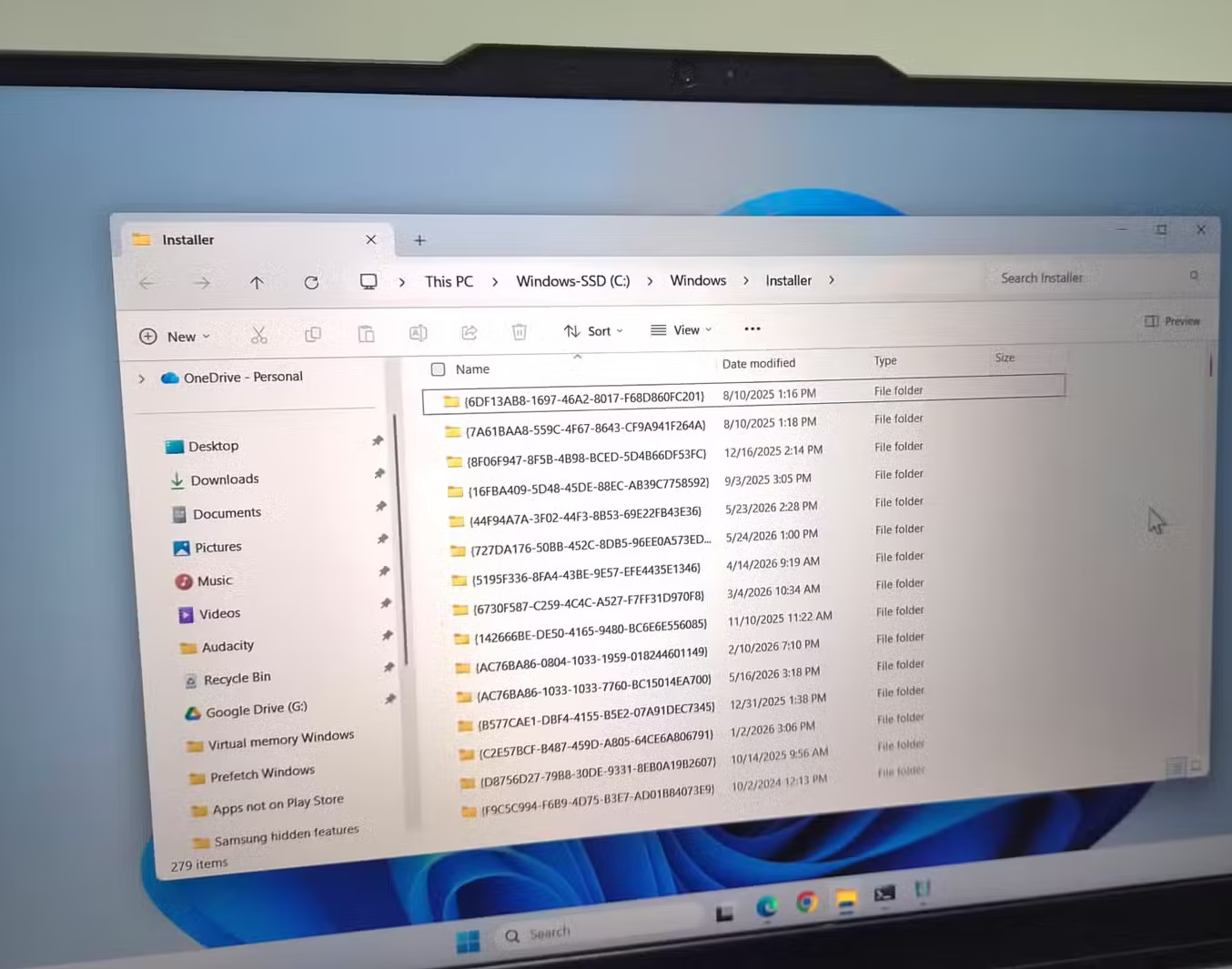
Why the folder grows so large over time
The folder can increase in size due to continuous system activity, including:
• Frequent software installations
• Regular application updates
• Accumulated patch files
• Leftover installer data from removed apps
Over time, this buildup can result in storage usage reaching tens of gigabytes, even on standard personal computers.
Windows Installer folder cleanup risks and limitations
Before attempting any Windows Installer folder cleanup, it is important to understand the risks involved in modifying system files.
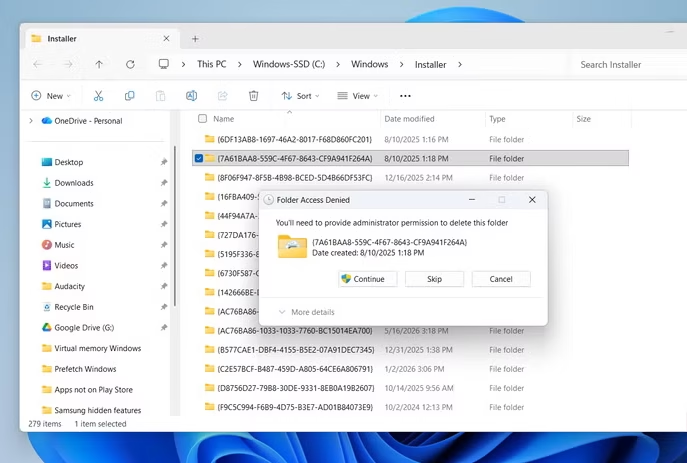
Why manual deletion is dangerous
The files in the Installer directory are not randomly stored. Many of them are still required for system stability.
Risks include:
• Broken application updates
• Failed software repairs
• Unsuccessful program uninstalls
• System instability in some cases
Because file names are not user-friendly, it is difficult to determine which files are safe to remove manually.
Why system files are difficult to identify
Most Installer files use cryptic naming formats, making them difficult to trace back to specific applications.
This leads to challenges such as:
• No clear file ownership
• No visible app association
• Risk of deleting essential system data
Safe Windows Installer folder cleanup methods
Instead of manually deleting files, safer methods can help recover storage space without damaging system functionality.
Using built-in Windows cleanup options
Windows includes limited but useful options for managing installer-related storage.
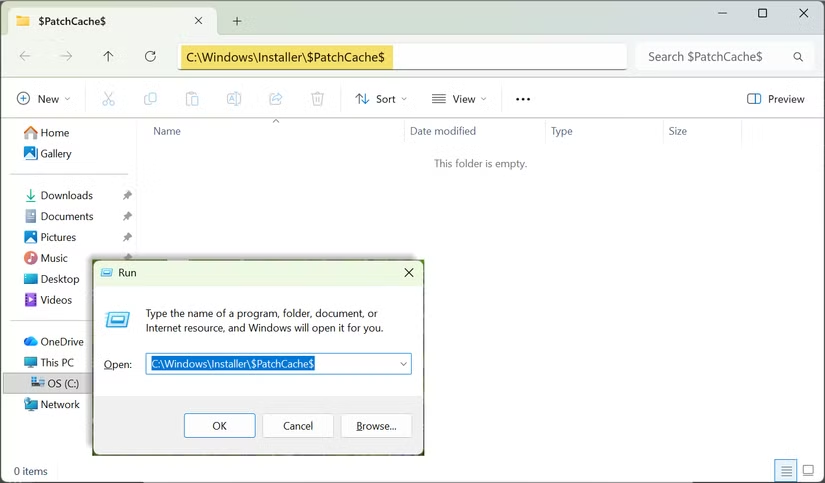
Clearing PatchCache folder safely
One of the safer targets for Windows Installer folder cleanup is the PatchCache directory.
This folder stores backup patch data that can sometimes be safely removed.
Common steps include:
• Opening Run dialog with Win + R
• Navigating to system patch cache location
• Selecting temporary patch files
• Deleting unnecessary cached data
This method can help recover space without affecting core system stability when done carefully.
Using Storage Sense for general cleanup
Windows Storage Sense is another built-in feature that helps manage system clutter.
It can automatically remove:
• Temporary files
• Old update data
• Recycle Bin contents
• System cache files
This helps reduce overall storage pressure, including indirectly impacting Installer-related storage buildup.
Advanced Windows Installer folder cleanup tools
For users comfortable with advanced tools, additional methods can help identify unnecessary files more accurately.
PowerShell-based cleanup approaches
PowerShell tools can scan Installer directories and identify unused or orphaned files.
These methods may:
• Detect unused patch files
• Identify orphaned installation data
• Help manage system storage more precisely
However, they require technical understanding to avoid mistakes.
GUI tools for safer cleanup
Graphical tools are often preferred by non-technical users.
These tools typically:
• Scan Installer directories
• Compare active system files
• Categorize safe and unsafe data
Common classifications include:
• In-use files
• System-required files
• Orphaned or unused files
This makes it easier to safely reclaim disk space without risking system stability.
Windows Installer folder cleanup and storage optimization
The Installer folder is only one part of a larger storage management challenge in Windows systems.
Other hidden storage-heavy areas
In addition to Installer files, Windows systems may accumulate data in:
• System update caches
• Hibernation files
• Restore points
• Driver package storage
• Temporary application data
Each of these can quietly consume significant disk space over time.
Using system tools for long-term management
Windows includes built-in tools that help manage storage more efficiently.
These include:
• Storage Sense automation
• Disk cleanup utilities
• System cleanup recommendations
Regular use of these tools can prevent storage buildup over time.
Why Windows Installer folder cleanup matters
Understanding Windows Installer folder cleanup is important because storage issues often go unnoticed until they become significant.
Large hidden folders can:
• Reduce available disk space
• Slow system performance indirectly
• Limit software installation capacity
• Create confusion for users monitoring storage
By managing system storage carefully, users can maintain better performance and avoid unexpected storage shortages.
FAQ
What is the Windows Installer folder used for?
The Windows Installer folder stores MSI and MSP files used for installing, updating, repairing, and uninstalling applications.
Is it safe to delete files from the Installer folder?
Manually deleting files is not recommended because it may break software updates or system repair functions.
How can I safely perform Windows Installer folder cleanup?
Safe cleanup methods include using built-in Windows tools, Storage Sense, and specialized cleanup utilities instead of manual deletion.
Why does the Installer folder take up so much space?
It grows over time due to software installations, updates, and accumulated patch files that Windows stores for system recovery purposes.
Conclusion
Windows Installer folder cleanup highlights how hidden system directories can silently consume large amounts of storage space over time. While manual deletion is risky, safer methods such as built-in Windows tools and cleanup utilities can help recover space without damaging system functionality. Regular storage maintenance ensures better performance and prevents unexpected disk space issues.
PLEASE CLICK HERE FOR MORE NEWS