 0
0
 0
0
The PC fan airflow direction mistake is one of the most common reasons high-end systems experience poor cooling performance, even when equipped with powerful components.
Many users assume overheating issues are caused by faulty hardware or poor thermal paste application. However, in many cases, the real problem is much simpler: a single incorrectly mounted fan disrupting the entire airflow system.
Why Your High-End PC Might Still Overheat
Building a powerful PC with modern GPUs and liquid cooling should result in low temperatures. Yet, many systems still struggle with high idle and load temperatures.
The Hidden Airflow Problem
The PC fan airflow direction mistake often goes unnoticed because modern cases have become more complex. With multiple intake and exhaust points, it is no longer easy to visually confirm correct airflow.
Common contributing factors include:
- Side and bottom intake configurations
- Top and rear exhaust setups
- Dual-chamber case designs
- Aesthetic-focused fan placement
These setups can unintentionally trap hot air inside the case.
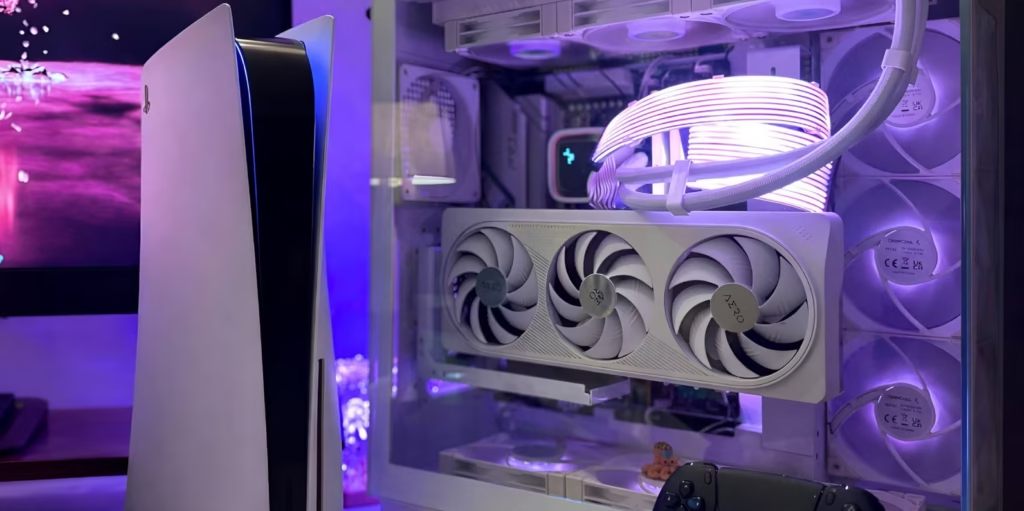
A Simple 180-Degree Error
In many cases, the issue comes down to a fan installed in the wrong direction. This small mistake can:
- Block airflow paths
- Create heat pockets
- Increase CPU and GPU temperatures
Even a single reversed fan can disrupt the entire cooling balance.
Understanding Fan Orientation
Correct fan installation starts with knowing how to identify intake and exhaust sides.
Intake vs Exhaust Explained
Every PC fan has two sides:
- Intake side (front/pretty side):
- Visible blades
- Brand logo sticker
- RGB lighting (if present)
- Air enters from this side
- Exhaust side (rear/ugly side):
- Plastic support braces (X-frame)
- Technical sticker
- Air exits from this side
A simple rule to remember:
- Faces pull air in
- Frames push air out
Reverse Blade Fan Confusion
Modern fan designs have introduced reverse-blade fans that look like intake fans but function as exhausts.
This design can mislead builders, especially those prioritizing aesthetics. As a result, the PC fan airflow direction mistake becomes even more common in visually optimized builds.
What Happens When Fans Fight Each Other
Incorrect fan placement can create airflow conflicts inside the PC case.
Airflow Tug of War
When fans face each other or oppose airflow direction:
- Air pressure builds up
- Hot air becomes trapped
- Cooling efficiency drops
This creates a “dead zone” where heat accumulates instead of being expelled.
Common Installation Mistakes
Some frequent errors include:
- Rear fan set as intake instead of exhaust
- Side fans configured as exhaust, starving the GPU
- Top fans pulling air in instead of pushing heat out
These mistakes disrupt natural heat flow and can significantly increase internal temperatures.
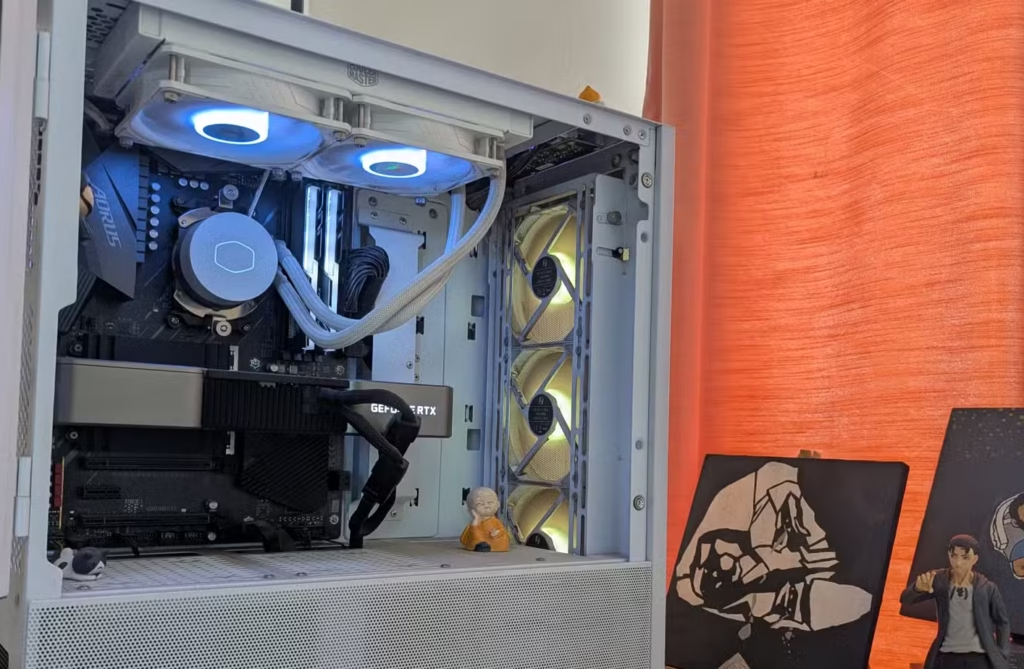
The Importance of Case Pressure
Case pressure plays a critical role in cooling performance and dust management.
Positive vs Negative Pressure
There are three main airflow setups:
- Positive pressure (recommended):
- More intake than exhaust
- Pushes air out through gaps
- Reduces dust buildup
- Negative pressure:
- More exhaust than intake
- Pulls dust into the case
- Can create vacuum-like conditions
- Neutral pressure:
- Balanced intake and exhaust
- Difficult to achieve consistently
The ideal setup is slightly positive pressure.
Recommended Fan Setup
For most systems, a balanced configuration would be:
- Three intake fans at the front
- Two exhaust fans at the top or rear
This setup ensures steady airflow while minimizing dust accumulation.
How to Quickly Test Your Fan Setup
You don’t need to dismantle your PC to identify a PC fan airflow direction mistake.
Tissue Paper Test
A simple method involves using lightweight paper:
- Turn on your PC
- Hold tissue near a fan
- Observe movement
- Pulled toward fan = intake
- Pushed away = exhaust
Smoke Test for Advanced Checks
For a more visual approach:
- Use incense smoke
- Watch airflow direction inside the case
This helps identify:
- Recirculation loops
- Poor airflow zones
- Heat buildup areas
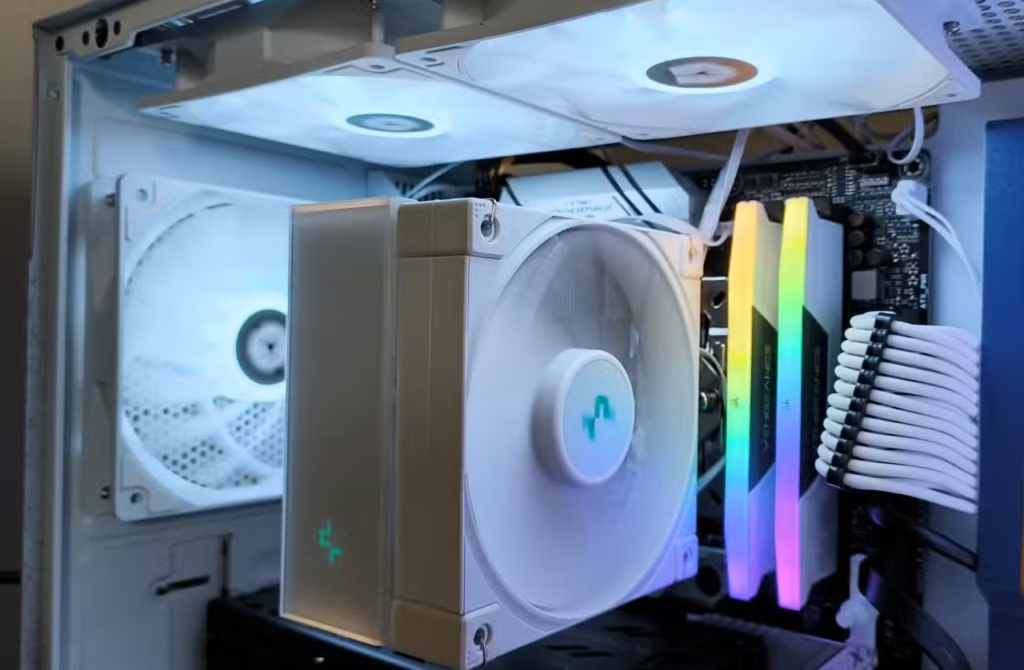
Fixing the Problem Without Spending Money
Many users assume they need new hardware to fix overheating issues. In reality, correcting fan orientation can deliver immediate improvements.
Quick Fix Benefits
Fixing a PC fan airflow direction mistake can:
- Reduce temperatures by up to 10°C
- Improve airflow efficiency
- Extend component lifespan
What to Check First
Before replacing any parts:
- Inspect fan orientation
- Check airflow direction
- Ensure proper intake/exhaust balance
Often, a simple adjustment is all that is needed.
FAQ Section
What is the most common PC fan airflow direction mistake?
The most common mistake is installing a fan backward, causing airflow to conflict with other fans and trap heat inside the case.
How do I know if my PC fans are facing the right direction?
Check the fan sides: the open blade side is intake, while the side with braces is exhaust. You can also use the tissue test.
Can wrong fan direction cause overheating?
Yes, incorrect fan direction can significantly reduce cooling efficiency and lead to high CPU and GPU temperatures.
What is the best airflow setup for a PC case?
A slightly positive pressure setup with more intake than exhaust fans is generally recommended for optimal cooling and dust control.
Conclusion
The PC fan airflow direction mistake is a simple yet critical issue that can severely impact system performance. While many users focus on upgrading hardware, proper fan orientation often provides a faster and more effective solution. By understanding airflow basics and testing your setup, you can improve cooling efficiency without spending extra money.
PLEASE CLICK HERE FOR MORE NEWS