 0
0
 0
0
Linux dual monitor setup tools are becoming increasingly important as more users move away from Windows and experiment with desktop Linux distributions like Bazzite, Fedora, Ubuntu, and KDE Plasma systems. For users transitioning from Windows 11, recreating familiar productivity features on Linux can sometimes feel overwhelming at first.
However, several built-in Linux tools and utilities are helping users build smooth and efficient dual-monitor setups without sacrificing convenience or functionality. From advanced window tiling systems to brightness controls and display tweaks, Linux desktops are becoming far more flexible for multitasking users.
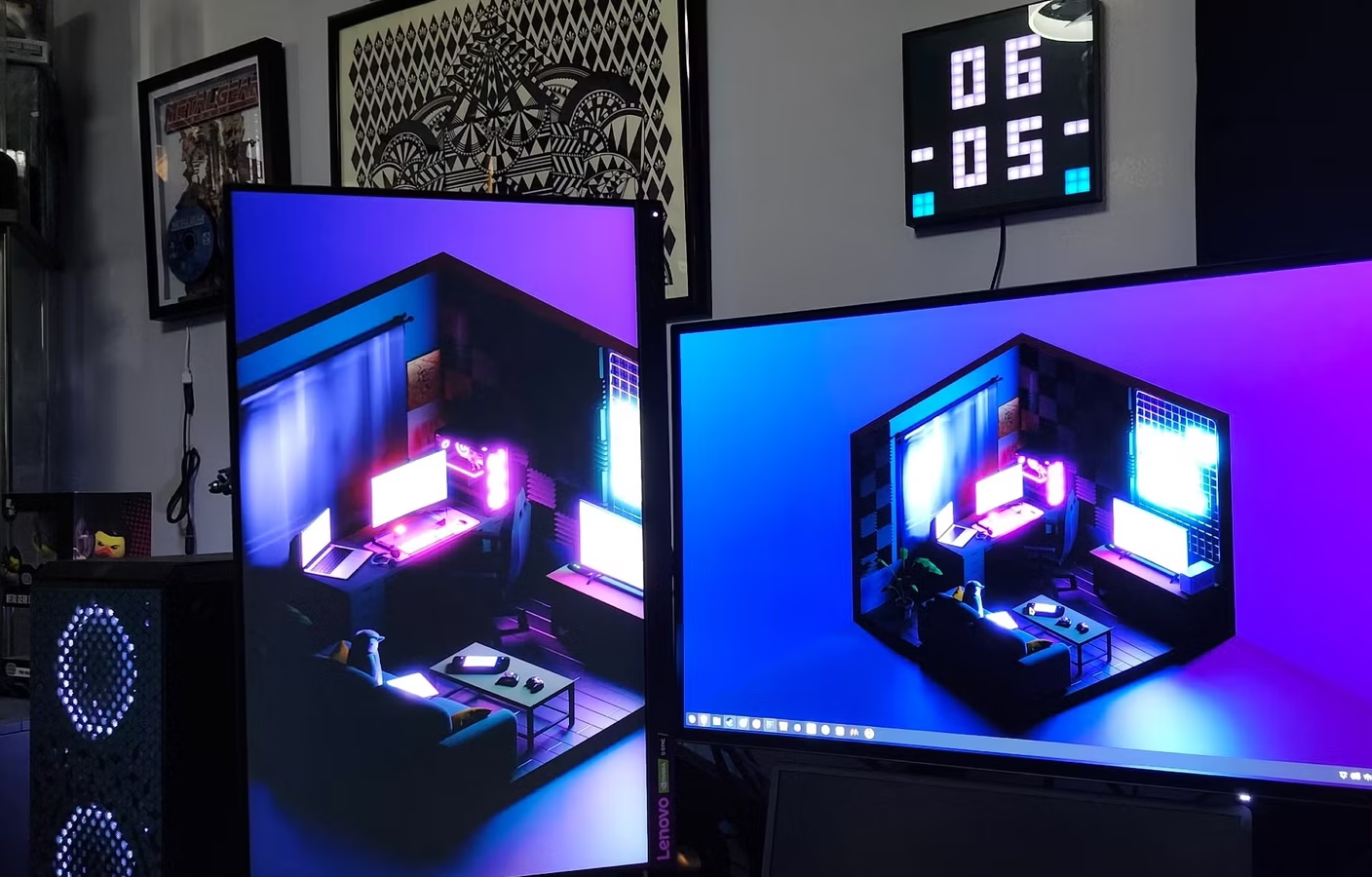
One user recently shared how switching fully to Bazzite Linux initially created several frustrations with his dual-monitor setup. But after discovering three specific tools and settings, the experience became just as seamless as Windows 11.
Linux Users Continue Switching From Windows
The rise in Linux adoption has accelerated over the past few years due to concerns about Windows updates, hardware requirements, privacy, and system customization limitations.
Gaming-focused Linux distributions like Bazzite are also gaining popularity because they combine user-friendly interfaces with powerful Linux features.
Bazzite Becomes Popular Among Gamers
Bazzite is a Linux distribution based on Fedora and optimized for gaming and desktop use.
It supports:
- KDE Plasma desktop environments
- Wayland display systems
- Steam gaming compatibility
- Enhanced driver support
- Advanced desktop customization
For users migrating from Windows, the operating system offers a modern desktop environment while maintaining Linux flexibility.
However, adjusting to Linux dual monitor setup tools can still require some learning.
Edge Barrier Solves Cursor Movement Frustrations
One of the first issues discovered after installing Linux involved moving the cursor between displays.
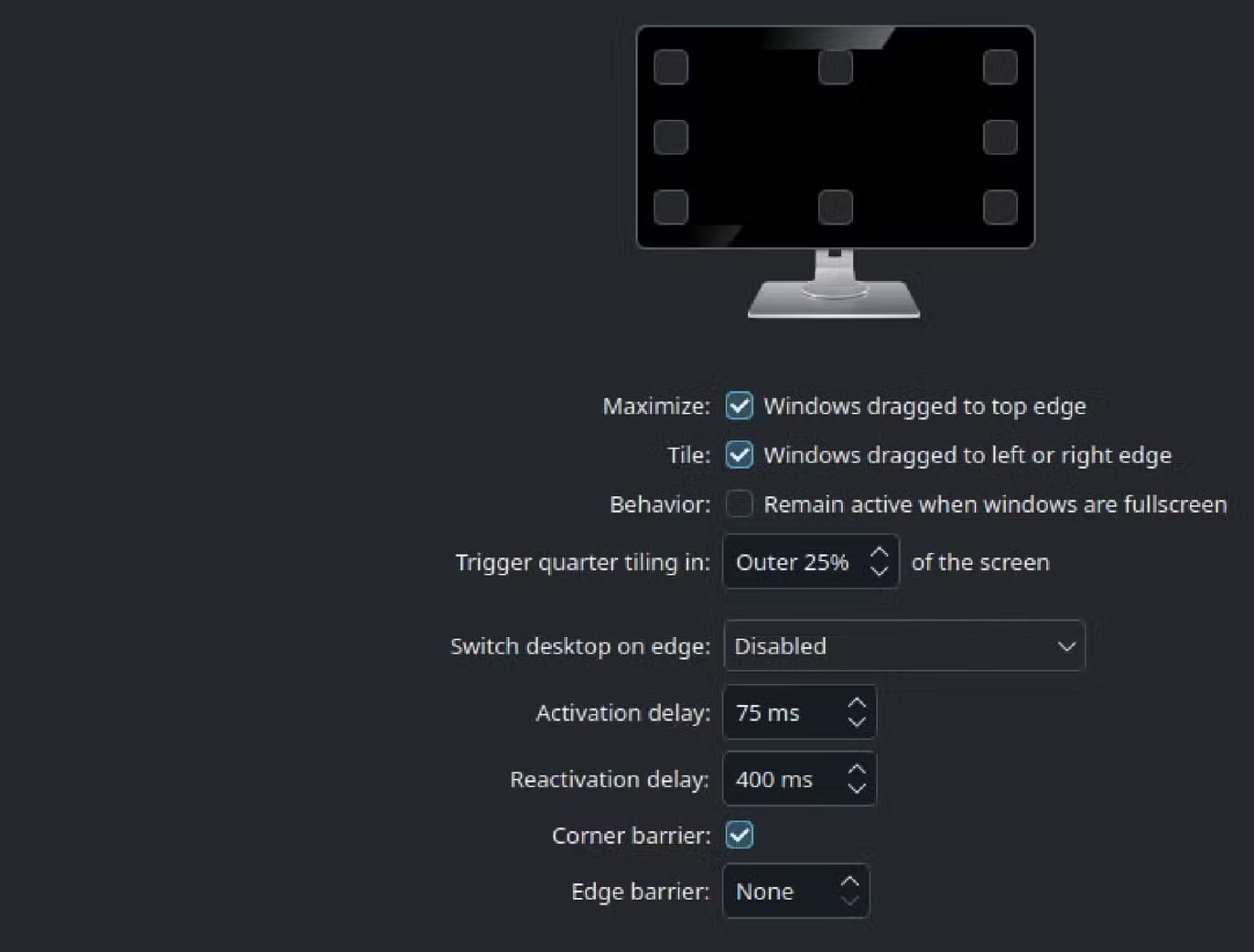
What Is Edge Barrier?
Edge Barrier is a KDE Plasma setting designed to prevent accidental cursor movement between monitors.
The feature adds slight resistance or delay when moving the mouse across screen edges.
Its goal is to reduce accidental screen switching while gaming or multitasking.
Why Some Users Disable Edge Barrier
While useful for some users, Edge Barrier can frustrate people accustomed to fast cursor movement between monitors.
The delay may feel unnatural, especially for users coming from Windows systems.
To disable Edge Barrier:
- Open Display Settings
- Navigate to screen edge controls
- Locate Edge Barrier settings
- Disable the feature
Users running GNOME desktops may encounter a similar feature called Sticky Edges, although the two systems function differently.
KDE Plasma Offers Deep Display Customization
KDE Plasma remains one of the most customizable Linux desktop environments available.
Users can modify:
- Screen edge behaviors
- Multi-monitor layouts
- Workspace animations
- Window snapping
- Desktop effects
These Linux dual monitor setup tools are especially useful for productivity-heavy workflows.
KWin Tiling Editor Replaces FancyZones on Linux
One of the biggest challenges for former Windows users is replacing Microsoft PowerToys features.
FancyZones Equivalent Exists on Linux
Windows users often rely on FancyZones for advanced window management.
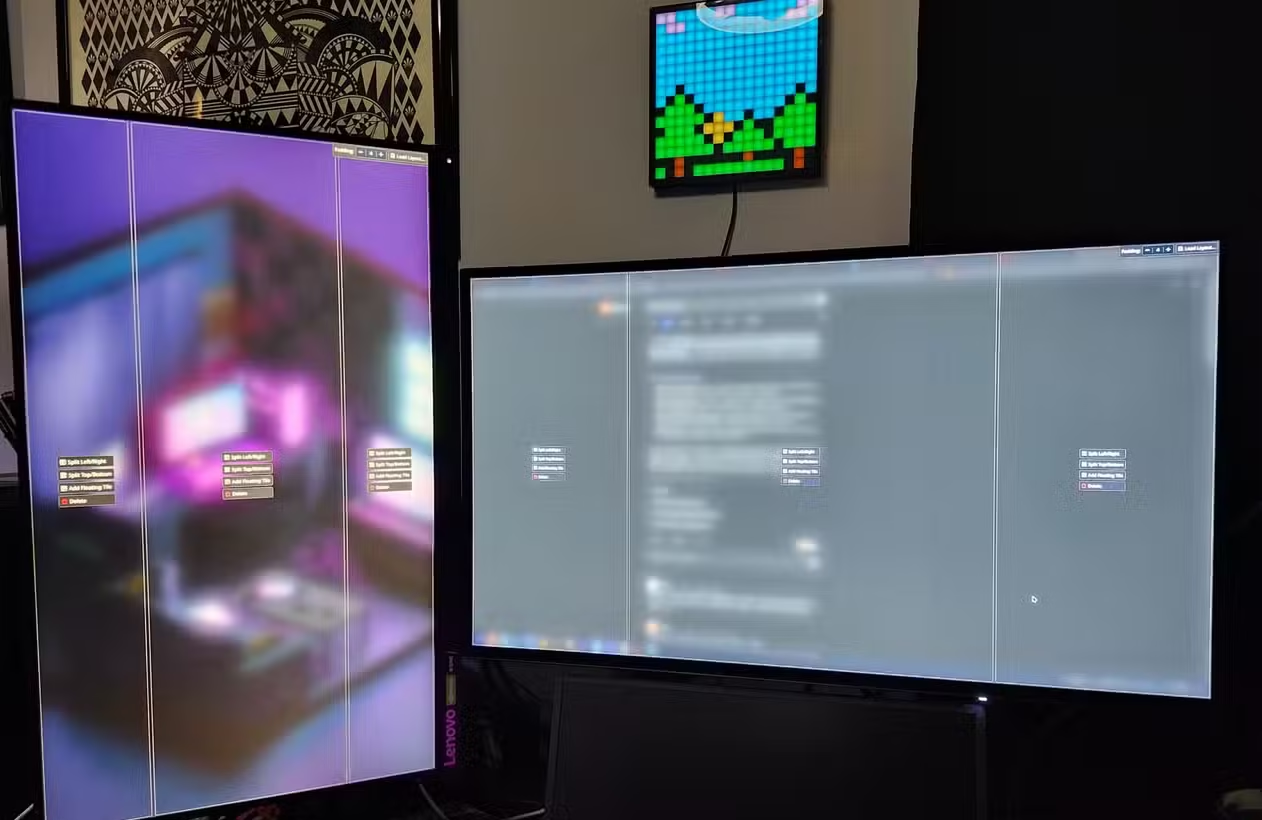
On KDE Plasma systems, KWin Tiling Editor offers a similar experience.
The tool is included by default on Plasma 5.27 and newer systems.
How KWin Tiling Editor Works
The feature allows users to create custom window layouts across multiple monitors.
To activate the editor:
- Press the Windows key + T
Once opened, users can:
- Divide screens into sections
- Create custom tiling zones
- Snap windows automatically
- Save layouts after rebooting
Linux Window Management Keeps Improving
KWin Tiling Editor gives Linux users advanced multitasking capabilities without needing third-party software.
The system works particularly well for:
- Streamers
- Content creators
- Developers
- Remote workers
- Gamers with secondary displays
Unlike older Linux tiling managers that required command-line knowledge, KWin simplifies the process visually.
This makes Linux dual monitor setup tools far more accessible to everyday users.
ddcutil Brings Advanced Monitor Controls to Linux
Another standout tool is ddcutil, a command-line utility that gives users direct control over monitor settings.
What Is ddcutil?
ddcutil communicates directly with compatible monitors through the DDC/CI protocol.
The utility allows users to adjust:
- Brightness
- Contrast
- RGB color balance
- Audio volume
- Input sources
Without touching physical monitor buttons.
Installing ddcutil on Linux
The installation process involves a few terminal commands.
The setup commands include:
brew install ddcutilFollowed by:
sudo modprobe i2c-dev
echo "i2c-dev" | sudo tee /etc/modules-load.d/i2c-dev.conf
After installation, users can instantly control multiple displays through terminal commands.
Brightness Control Becomes Easier
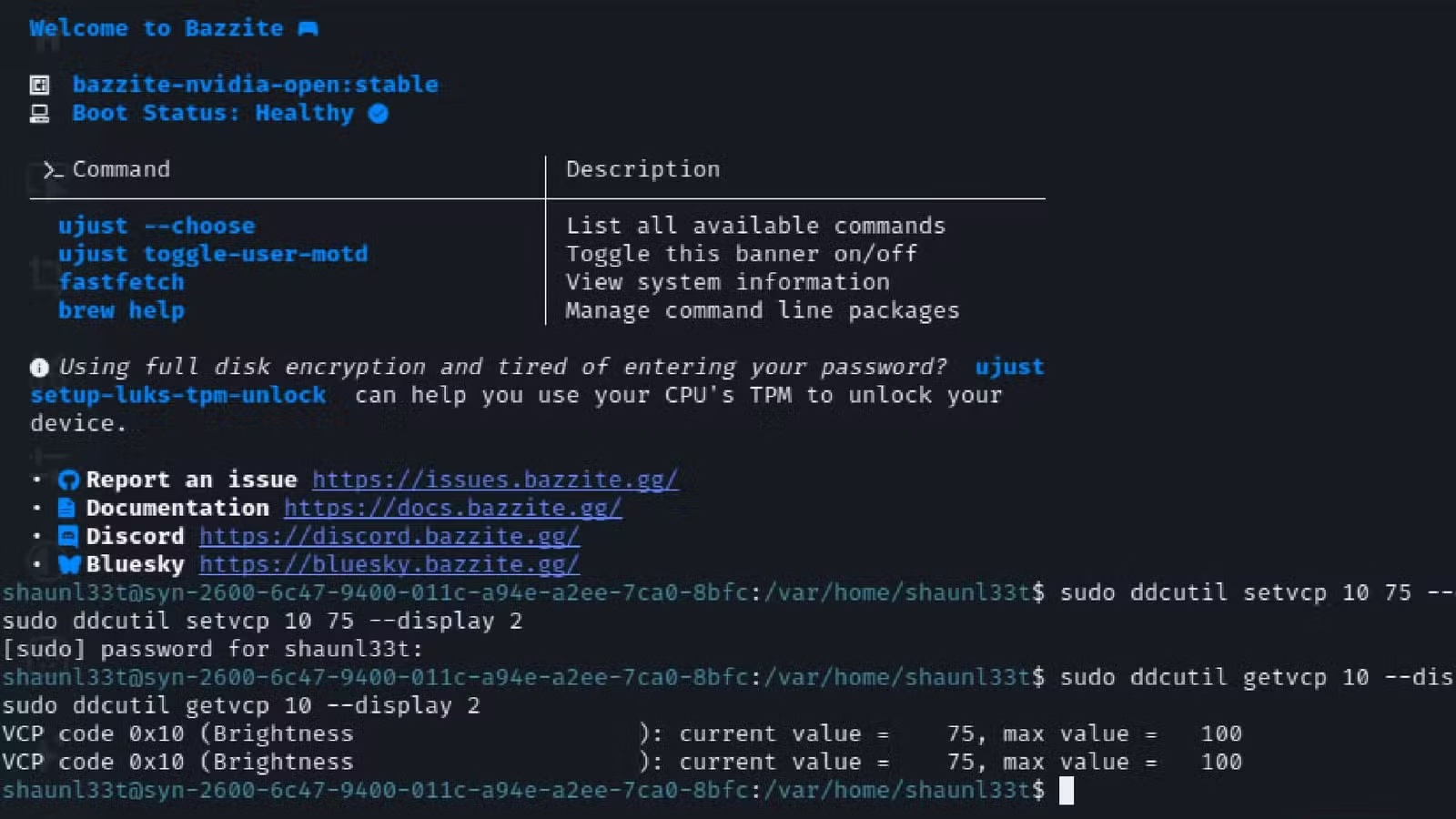
Users can modify monitor brightness using:
sudo ddcutil setvcp 10 75 --display 1And:
sudo ddcutil setvcp 10 75 --display 2The number “75” represents brightness percentage.
This removes the need to manually adjust each monitor physically.
ddcutil Helps Match Different Displays
One major challenge with dual-monitor setups involves matching color and brightness levels across different monitor brands.
ddcutil makes calibration easier by allowing detailed adjustments directly from Linux.
This becomes especially useful when using:
- OLED and IPS displays together
- Mixed monitor brands
- Multi-display productivity setups
Among Linux dual monitor setup tools, ddcutil is becoming increasingly popular with advanced users.
Linux Desktop Customization Continues Expanding
One major strength of Linux remains its customization potential.
Users can tailor almost every aspect of the operating system depending on their desktop environment and workflow preferences.
Different Linux Systems Offer Different Experiences
Linux behavior can vary significantly depending on:
- KDE Plasma
- GNOME
- X11
- Wayland
- Fedora-based distributions
- Ubuntu-based distributions
Some applications perform better on X11 systems, while others work best under Wayland.
This flexibility allows users to build highly personalized desktop experiences.
Linux Productivity Features Continue Improving
As Linux desktop adoption increases, more user-friendly tools are appearing regularly.
Modern Linux environments now include:
- Advanced tiling systems
- Improved gaming support
- Better hardware compatibility
- AI-assisted terminal guidance
- Enhanced multi-monitor controls
For former Windows users, the transition is becoming easier than ever.
Linux Gaming and Productivity Ecosystems Grow
Gaming-focused Linux systems like Bazzite are helping introduce more users to Linux desktops.
With better support for:
- Steam
- Proton compatibility
- NVIDIA drivers
- AMD graphics
- Wayland improvements
Linux is slowly becoming a realistic alternative for both gamers and professionals.
The growing availability of Linux dual monitor setup tools is helping accelerate that transition.
FAQ
What are the best Linux dual monitor setup tools?
Some popular Linux dual monitor setup tools include KWin Tiling Editor, ddcutil, Edge Barrier settings, and KDE Plasma display controls.
What does Edge Barrier do in Linux?
Edge Barrier prevents accidental cursor movement between monitors by adding resistance near display edges.
Is KWin Tiling Editor similar to FancyZones?
Yes. KWin Tiling Editor works similarly to Microsoft PowerToys FancyZones by allowing custom window snapping layouts.
Can Linux control monitor brightness through software?
Yes. Utilities like ddcutil allow users to adjust brightness, contrast, and color settings directly from Linux.
Linux desktops are rapidly evolving into highly polished productivity environments capable of handling advanced dual-monitor workflows. Tools like Edge Barrier controls, KWin Tiling Editor, and ddcutil are helping users recreate many of the conveniences previously associated with Windows systems. As Linux distributions continue improving usability and hardware compatibility, more users are likely to explore Linux for gaming, multitasking, and professional workflows.
PLEASE CLICK HERE FOR MORE NEWS