 0
0
 0
0
Free PC maintenance tasks can significantly improve system performance without requiring expensive hardware upgrades or paid software tools. Many users assume slow performance automatically means aging hardware, but in reality, neglected maintenance is often the main reason PCs begin to feel sluggish over time.
Modern gaming and productivity systems rely heavily on proper cooling, optimized settings, updated firmware, and healthy storage performance. When these areas are ignored, systems may experience overheating, slower boot times, unstable frame rates, and unnecessary CPU strain.
Fortunately, several simple maintenance steps can restore performance and improve overall efficiency at no cost.
Benchmarking Helps Detect Hidden Performance Problems
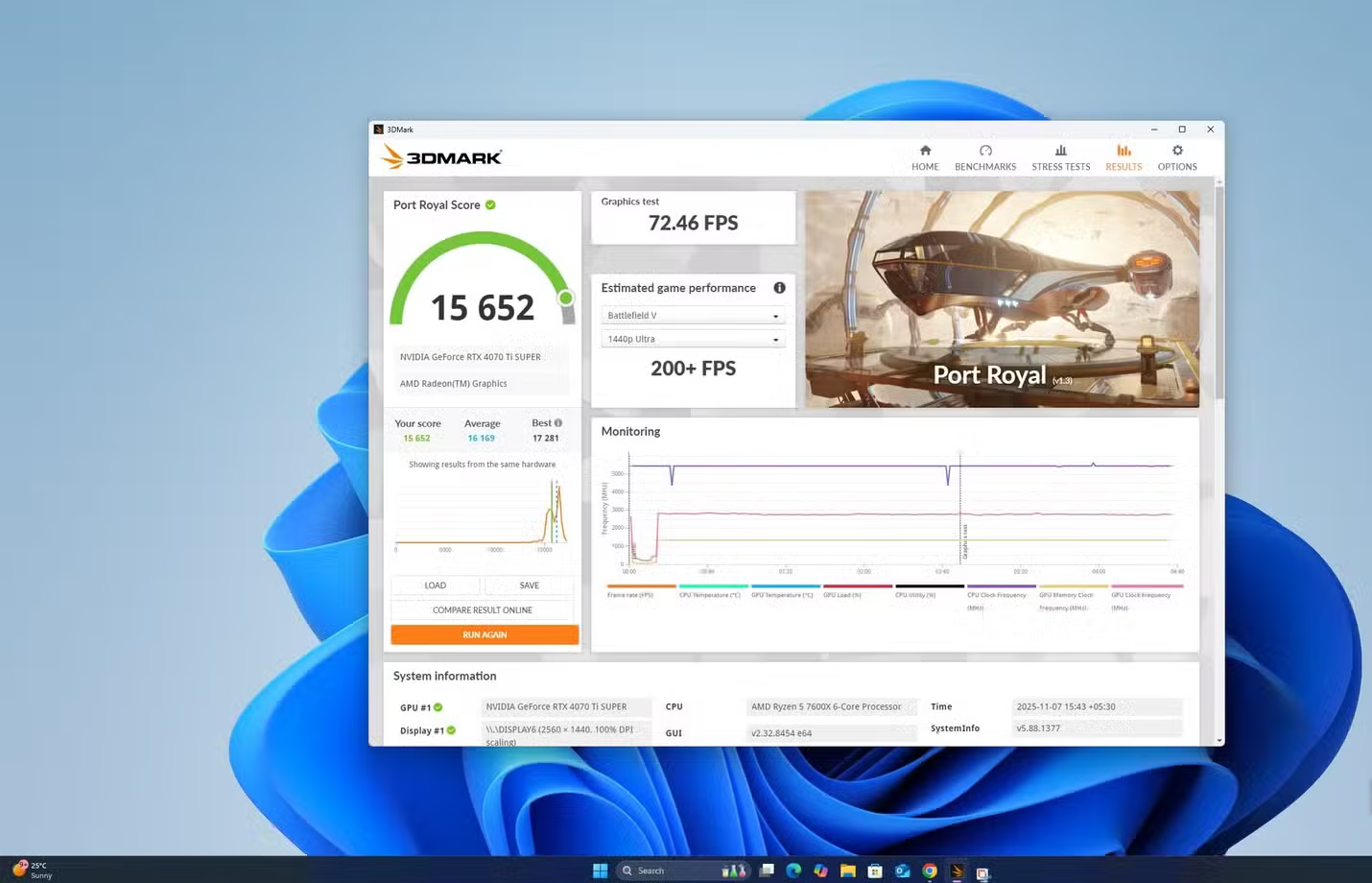
One of the most important free PC maintenance tasks is benchmarking your system regularly. Benchmarking allows users to measure performance over time and compare results against similar hardware configurations.
Without a baseline, gradual performance drops can go unnoticed for months.
Why Benchmarking Matters
Benchmarking tools can identify several hidden issues, including:
- Thermal throttling
- Cooling inefficiencies
- Incorrect BIOS settings
- GPU underperformance
- Background software conflicts
- Power delivery problems
By comparing benchmark scores over time, users can quickly determine whether their hardware is still operating properly.
Popular Benchmarking Tools
Several free benchmarking applications are commonly used by PC enthusiasts:
- 3DMark Demo
- Cinebench
- CPU-Z
- CrystalDiskMark
- HWMonitor
These tools provide detailed information about CPU temperatures, GPU performance, storage speed, and system stability.
GPU and CPU Monitoring
Graphics cards and processors can gradually lose efficiency due to heat buildup or outdated settings. Running benchmark tests every few months helps monitor changes in:
- Frame rates
- Clock speeds
- CPU temperatures
- GPU temperatures
- Fan performance
If benchmark scores suddenly decline, it often indicates a cooling or configuration issue rather than failing hardware.
Storage Firmware Updates Can Improve System Speed
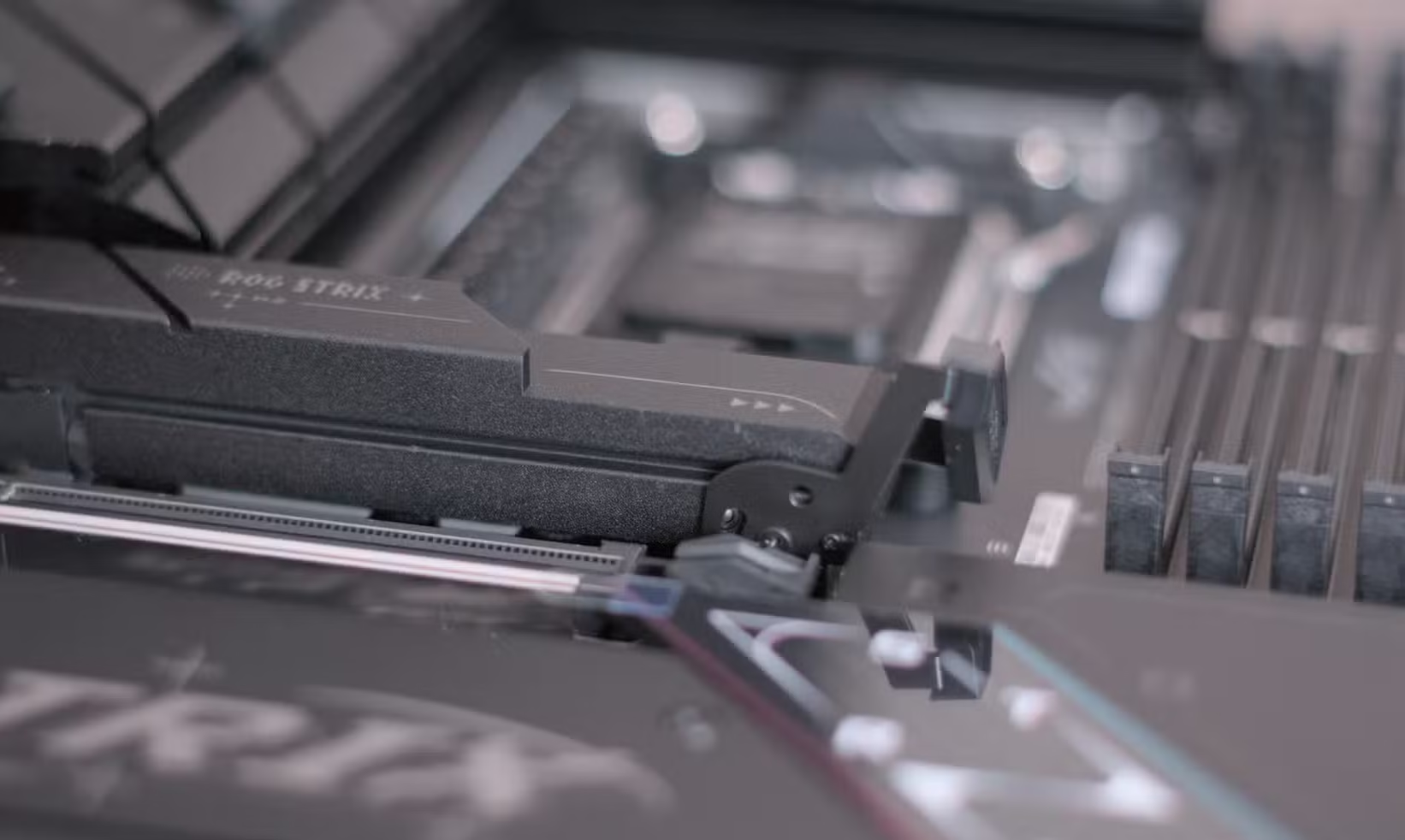
Many users regularly update Windows and graphics drivers but completely ignore SSD firmware updates. However, storage firmware plays a major role in system responsiveness and overall performance.
Updating SSD or NVMe firmware is one of the easiest free PC maintenance tasks available.
How Firmware Updates Help
Firmware updates improve how storage drives manage:
- Power consumption
- Data requests
- Thermal management
- Error correction
- Read and write efficiency
Improved storage performance can reduce:
- Game loading times
- Windows boot delays
- File transfer bottlenecks
- Background CPU usage
NVMe Drives and CPU Efficiency
Modern NVMe SSDs communicate directly with the CPU through PCIe lanes. Inefficient firmware can increase processor workload and system latency.
Updated firmware often improves communication between the storage drive and CPU, reducing unnecessary overhead and helping temperatures stay lower during idle tasks.
Checking for SSD Firmware Updates
Users can usually update firmware through official manufacturer software such as:
- Samsung Magician
- Crucial Storage Executive
- WD Dashboard
- Kingston SSD Manager
Most updates only take a few minutes to install and require a simple system restart afterward.
Dust Build-Up Reduces Cooling Performance
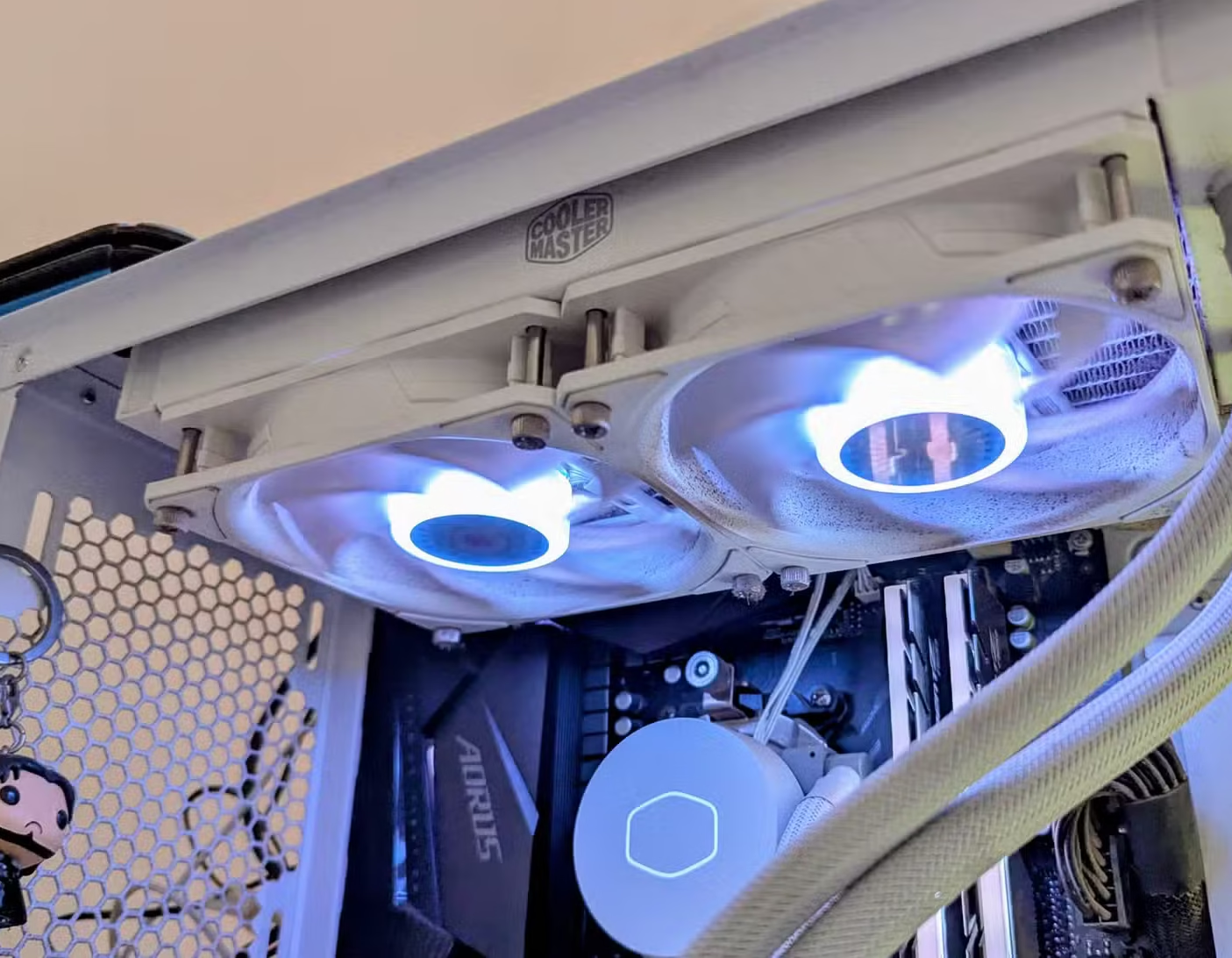
Dust accumulation is one of the most common reasons older PCs begin overheating. Over time, dust blocks airflow through fans, heatsinks, and radiators, causing temperatures to rise significantly.
Cleaning cooling hardware is among the most effective free PC maintenance tasks users can perform.
Why Dust Causes Performance Loss
When airflow becomes restricted:
- CPU temperatures increase
- GPU temperatures rise
- Fan speeds become louder
- Thermal throttling occurs
- Gaming performance may drop
High temperatures force components to reduce clock speeds automatically to prevent damage.
Components Most Affected by Dust
The areas most likely to collect dust include:
- AIO liquid cooler radiators
- CPU heatsinks
- GPU fans
- Front intake filters
- Power supply vents
- Case exhaust fans
Even a thin layer of dust can reduce cooling efficiency during gaming or heavy workloads.
Safe Cleaning Tips
Users can safely clean their systems using:
- Compressed air
- Electric air blowers
- Soft brushes
- Small handheld vacuums
When cleaning fans, it is important to hold fan blades still while blowing air through them. Allowing fans to spin freely under pressure may damage the bearings.
How Often Should PCs Be Cleaned?
Cleaning frequency depends on environment and usage. Systems placed on carpets or in dusty rooms require more frequent cleaning.
General recommendations include:
- Light cleaning every month
- Deep cleaning every 3–6 months
- Filter cleaning every few weeks
Regular cleaning helps maintain stable temperatures and quieter operation.
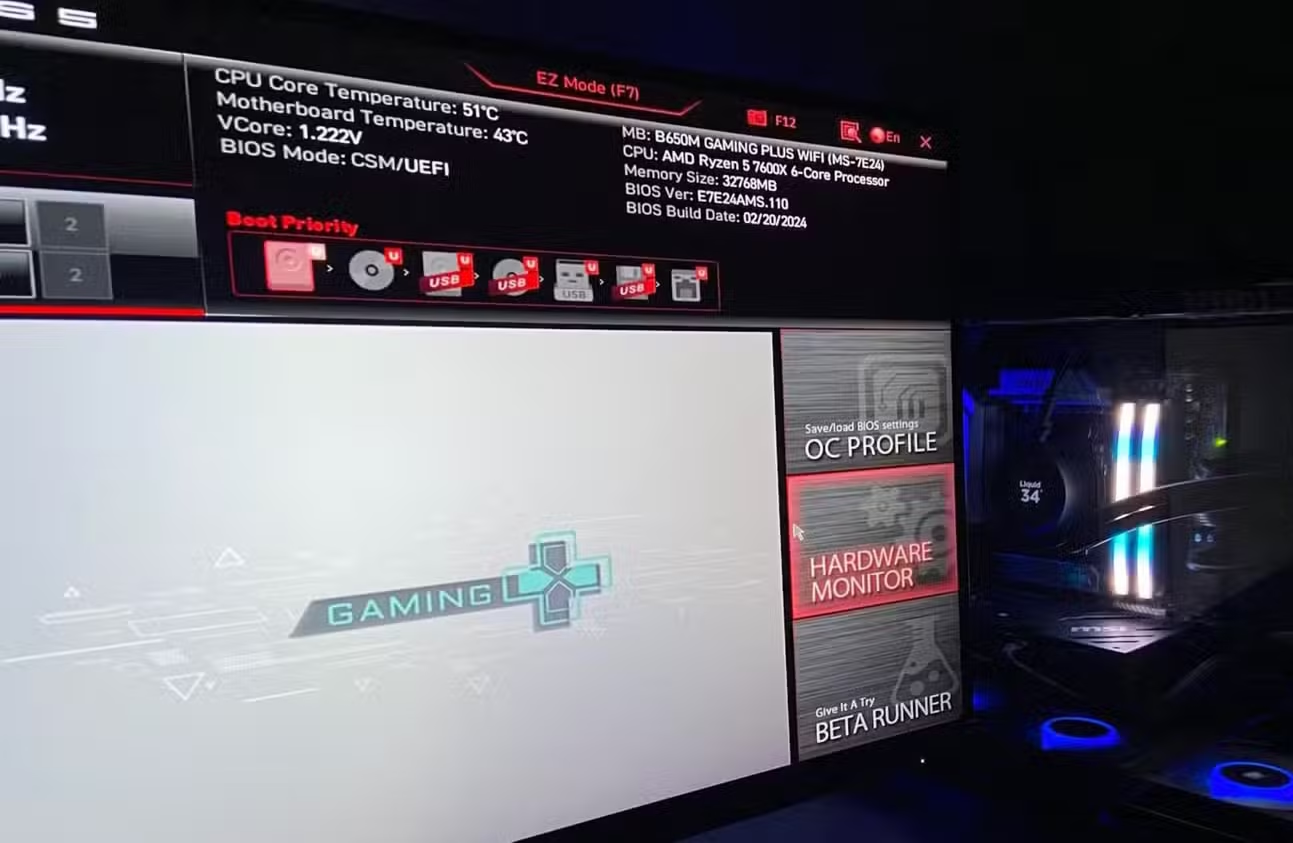
BIOS Optimization Improves Performance and Efficiency
Most PC users enter the BIOS only during initial setup and never revisit it. However, BIOS optimization remains one of the most overlooked free PC maintenance tasks.
Correct BIOS settings can improve cooling, stability, and power efficiency without changing hardware.
Fan Curve Optimization
Default motherboard fan profiles are often too conservative. This can allow temperatures to rise unnecessarily before cooling fans respond properly.
Custom fan curves help:
- Lower CPU temperatures
- Improve airflow response
- Reduce thermal spikes
- Maintain stable gaming performance
Users can configure fan curves directly through BIOS menus or motherboard software utilities.
Undervolting Reduces Heat
Undervolting lowers the voltage supplied to a CPU or GPU while maintaining similar performance levels.
Benefits of undervolting include:
- Lower temperatures
- Reduced power consumption
- Less thermal throttling
- Quieter fans
- Better long-term efficiency
Modern processors are often configured aggressively by default, making undervolting a useful optimization method for many systems.
Memory Configuration Matters
Many PCs run slower than expected because high-speed RAM profiles are disabled by default.
Enabling technologies like:
- XMP (Intel)
- EXPO (AMD)
allows memory to run at advertised speeds rather than lower factory defaults.
This can noticeably improve:
- Gaming frame rates
- Productivity workloads
- Application responsiveness
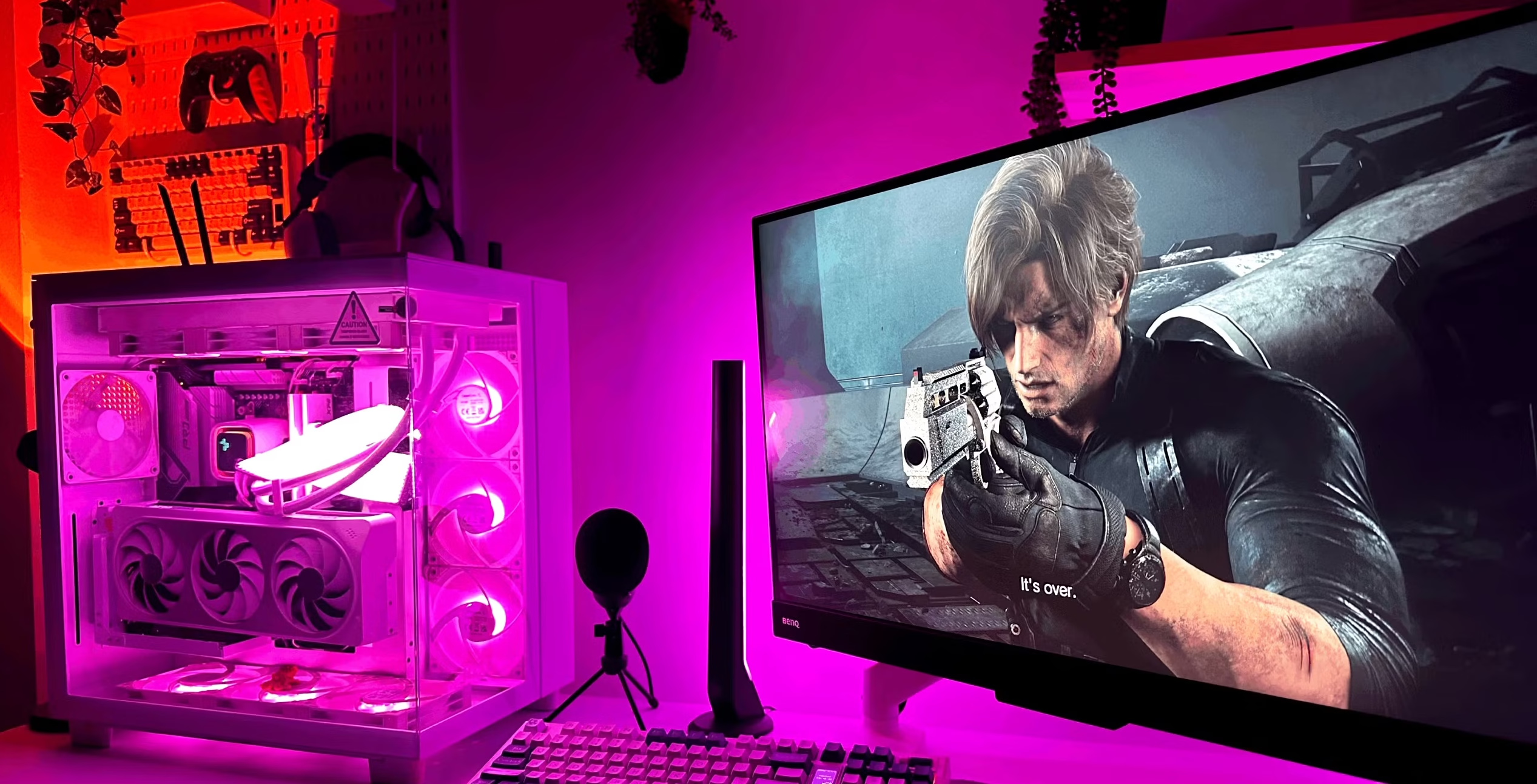
Small Tweaks Can Delay Expensive Upgrades
Many users immediately consider upgrading hardware when performance issues appear. However, free PC maintenance tasks often restore much of the lost responsiveness without requiring any purchases.
Simple improvements such as cleaning dust, updating storage firmware, and optimizing BIOS settings can significantly improve gaming and productivity performance.
Common Signs Maintenance Is Needed
Users should check maintenance if they notice:
- Slower boot times
- Higher fan noise
- Reduced gaming FPS
- Random stuttering
- Increased temperatures
- Longer application loading times
These symptoms are often caused by neglected maintenance rather than outdated hardware.
Performance Gains Without Spending Money
While maintenance will not transform an old PC into a high-end gaming machine, it can help systems maintain their intended performance levels for much longer.
For many users, these small adjustments delay the need for costly upgrades while improving stability and efficiency.
FAQ
What are the best free PC maintenance tasks?
The best free PC maintenance tasks include benchmarking, cleaning dust from cooling systems, updating SSD firmware, and optimizing BIOS settings.
Can cleaning dust improve gaming performance?
Yes. Dust restricts airflow and increases temperatures, which can cause thermal throttling and lower gaming frame rates.
Does updating SSD firmware really help performance?
Yes. SSD firmware updates can improve storage efficiency, reduce load times, and lower CPU overhead during system operations.
Is undervolting safe for gaming PCs?
When done correctly, undervolting is generally safe and can reduce temperatures, power usage, and fan noise while maintaining stable performance.
Free PC maintenance tasks remain one of the simplest ways to improve system performance without spending money on upgrades. Regular benchmarking, firmware updates, dust cleaning, and BIOS optimization can help systems run cooler, quieter, and faster for years. For many users, proper maintenance may solve performance issues long before new hardware becomes necessary.
PLEASE CLICK HERE FOR MORE NEWS