

 0
0
 0
0
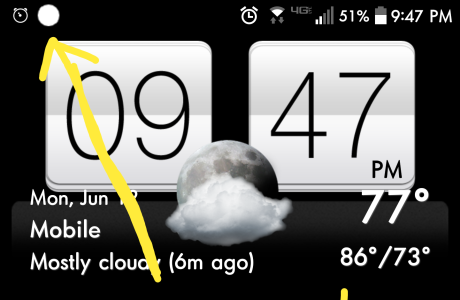
The white dot on Android phone screens has confused many users who suddenly notice a small white indicator appearing near the top of the status bar.
While the symbol may look unusual at first, it is generally not a sign of a hardware issue, malware problem, or software malfunction. Instead, the white dot on Android phone displays usually appears when there are more notifications than the status bar can visually show.
Android devices use the small white dot as a placeholder for hidden notifications that no longer fit in the available notification space.

What the White Dot on Android Phone Means
The white dot on Android phone status bars acts as a notification overflow indicator.
When too many app notifications accumulate, Android replaces additional notification icons with a small white dot to keep the top bar from becoming overcrowded.
Hidden Notifications Trigger the White Dot
The white dot typically appears on the left or right side of the notification bar depending on the phone model and Android version.
Instead of displaying every individual app icon, the device groups excess notifications behind the white dot.
These notifications may include:
- Missed calls
- Text messages
- Social media alerts
- App updates
- Email notifications
- System alerts
The white dot on Android phone screens simply signals that more notifications are waiting to be viewed.
Not Every Android Phone Shows It
Different Android manufacturers customize their user interfaces differently.
Some phones show a white dot, while others may use numbers, stacked icons, or no overflow indicator at all.
Samsung, Xiaomi, OnePlus, Google Pixel, and other Android brands may display notification symbols differently depending on software versions.
The White Dot Is Not Dangerous
Many users initially worry that the white dot could indicate spyware, camera activity, or a display problem.
However, the white dot on Android phone devices is usually harmless.
It Is Different From the Green Privacy Dot
The white dot should not be confused with Android’s green privacy indicator.
The green dot appears when apps are actively using the camera or microphone.
That symbol is more important because it relates to privacy and app permissions.
The white dot on Android phone screens only relates to unread notifications.
Not a Hardware or Software Fault
The appearance of the white dot does not mean your screen is damaged.
It is also not a sign that your Android operating system is failing.
The feature is simply part of Android’s notification management system.

How to Remove the White Dot on Android Phone
The easiest way to remove the white dot is by clearing notifications from the notification panel.
Once hidden notifications disappear, the white dot normally vanishes automatically.
Clear All Notifications
To clear notifications:
- Unlock your Android phone
- Swipe down from the top of the screen
- Open the notification panel
- Tap “Clear all”
This removes active notifications and usually clears the white dot immediately.
Remove Notifications Individually
Users can also clear notifications manually by:
- Opening each notification
- Swiping notifications away individually
- Disabling unnecessary app alerts
Managing notifications regularly can help prevent the white dot from appearing repeatedly.
Adjust Notification Settings
Android allows users to customize how notifications appear on the lock screen and status bar.
Changing these settings may reduce notification clutter.
Disable Unnecessary Notifications
Many apps send frequent alerts that are not important.
Users can reduce notification overload by turning off alerts from less important apps.
To manage notifications:
- Open Settings
- Tap Notifications
- Select specific apps
- Disable unwanted alerts
The white dot on Android phone screens becomes less common when fewer notifications are active.
Customize Status Bar Notifications
Some Android devices allow users to:
- Hide status bar notifications
- Show fewer notification icons
- Disable notification badges
- Prioritize important alerts
The exact wording and location of these settings may differ across phone brands and Android versions.
Other Common Android Status Bar Symbols
Android phones use many symbols and icons to communicate device activity and app information.
Some are system-related, while others come from installed apps.
Common Android Notification Icons
Frequently seen Android icons include:
- Wi-Fi connection
- Mobile data signal
- Bluetooth
- Airplane mode
- Alarm clock
- Battery level
- Location services
- Do Not Disturb mode
Unlike app notifications, some system icons cannot be removed permanently.
Too Many Apps Increase Notifications
The more apps installed on a device, the more notifications users usually receive.
Frequent alerts can quickly overcrowd the notification area and trigger the white dot overflow symbol.
Managing app permissions and disabling unnecessary notifications helps keep the status bar cleaner.

Why Android Notification Management Matters
Notification overload has become a growing issue as smartphones handle increasing numbers of apps and background services.
Android continues introducing tools designed to improve notification control and reduce clutter.
Excessive Notifications Affect User Experience
Too many notifications can become distracting and overwhelming.
Users may miss important messages when the notification bar becomes overloaded with minor alerts.
The white dot on Android phone displays is one way Android attempts to simplify crowded notification areas.
Android Updates Improve Notification Features
New Android updates regularly introduce improvements to notification management.
These updates may include:
- Better notification grouping
- Enhanced privacy indicators
- Smarter app prioritization
- Simplified notification controls
Keeping Android devices updated helps ensure smoother performance and better notification organization.
FAQ
What does the white dot on Android phone mean?
The white dot usually means there are more notifications than the status bar can display.
Is the white dot on Android phone dangerous?
No. The white dot is not harmful and does not indicate malware or hardware damage.
How do I remove the white dot on Android phone?
You can remove it by clearing notifications from the notification panel.
Is the white dot the same as the green privacy dot?
No. The green dot shows camera or microphone usage, while the white dot only indicates extra notifications.
Conclusion
The white dot on Android phone screens is simply a notification overflow indicator designed to alert users about hidden notifications. While it may initially appear confusing, the symbol is harmless and easy to remove by clearing or managing notifications. As Android devices continue evolving, notification management tools are becoming increasingly important for keeping smartphones organized and user-friendly.
PLEASE CLICK HERE FOR MORE NEWS



This is actually interesting, I wasn’t planning to spend time on blogs today. It actually answered something I was confused about, and that made it easier to follow. I’ll keep this bookmarked.