 0
0
 0
0
The fix Windows File Explorer slow performance issue is something many Windows 11 users continue to experience, especially when opening folders that contain many files. Reports of lagging, freezing, and slow response times have made File Explorer one of the most criticized parts of the operating system.
While Windows 11 introduces several modern features, performance concerns remain a common complaint. One hidden setting, however, may significantly improve how File Explorer behaves on many systems.

Why Windows File Explorer Can Feel Slow
File Explorer is responsible for managing files and folders on a Windows PC, but several background processes can affect its speed.
Common Performance Issues
Users often report problems such as:
- Delayed folder opening times
- Freezing when browsing large directories
- Slow right-click responses
- Unexpected crashes or unresponsiveness
These issues are more noticeable on systems with large file libraries or older hardware.
Background Processing Impact
One overlooked cause is Windows automatically analyzing folders in the background. This feature can slow down navigation without users realizing it.
The Hidden Feature Affecting File Explorer Speed
The fix Windows File Explorer slow performance solution is linked to a feature known as “Automatic Folder Type Discovery.”
This system automatically scans folder contents and assigns a layout based on file type.
How Folder Type Discovery Works
Windows tries to improve user experience by:
- Detecting file types in a folder
- Applying optimized view settings
- Adjusting layout automatically
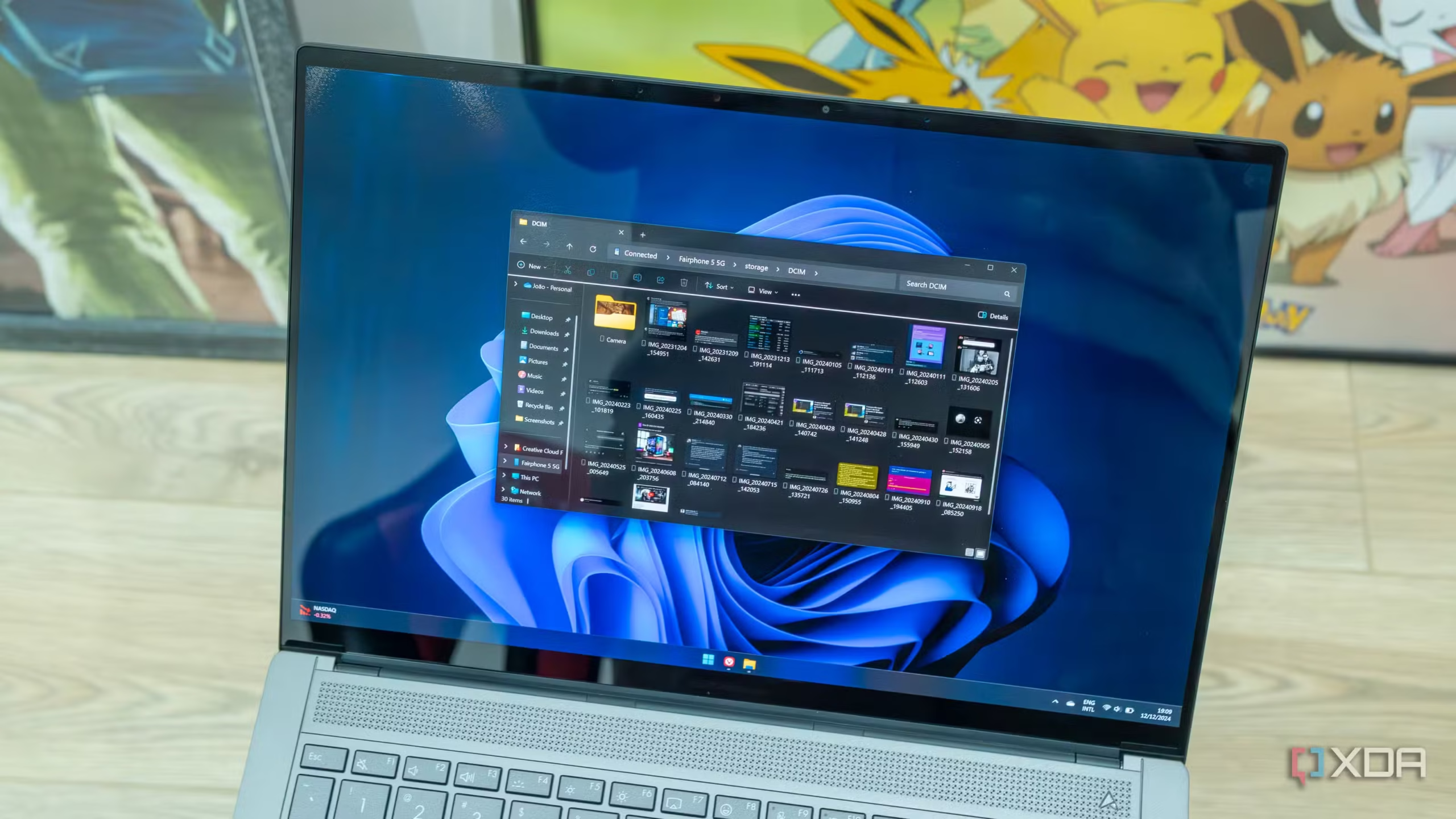
Examples of Automatic Changes
- Image folders switch to Picture view
- Music folders switch to Music layout
- Mixed files may trigger generic settings
While useful in theory, it can slow down performance in practice.
Why It Causes Lag
The issue happens because Windows may repeatedly scan folders every time they are opened. For folders with many files, this process can cause noticeable delays.
How to Disable Folder Type Discovery
Disabling this feature is a known method to improve performance and is part of the fix Windows File Explorer slow performance approach.
Important Warning Before Making Changes
Before proceeding, it is important to note that this method involves editing the Windows Registry.
Recommended Precautions
- Back up your Registry before making changes
- Follow instructions carefully
- Avoid modifying unrelated settings
Step-by-Step Registry Method
To disable Folder Type Discovery, users must use the Registry Editor.
Opening Registry Editor
- Open the Windows Search menu
- Type “Registry Editor”
- Select it and allow administrative access
Creating a Backup
Before changes are made:
- Click File in Registry Editor
- Select Export
- Choose a backup location
- Save the file
This ensures you can restore settings if needed.
Navigating to the Correct Path
Follow this directory structure:
HKEY_CURRENT_USER > Software > Classes > Local Settings > Software > Microsoft > Windows > Shell > Bags > AllFolders > Shell
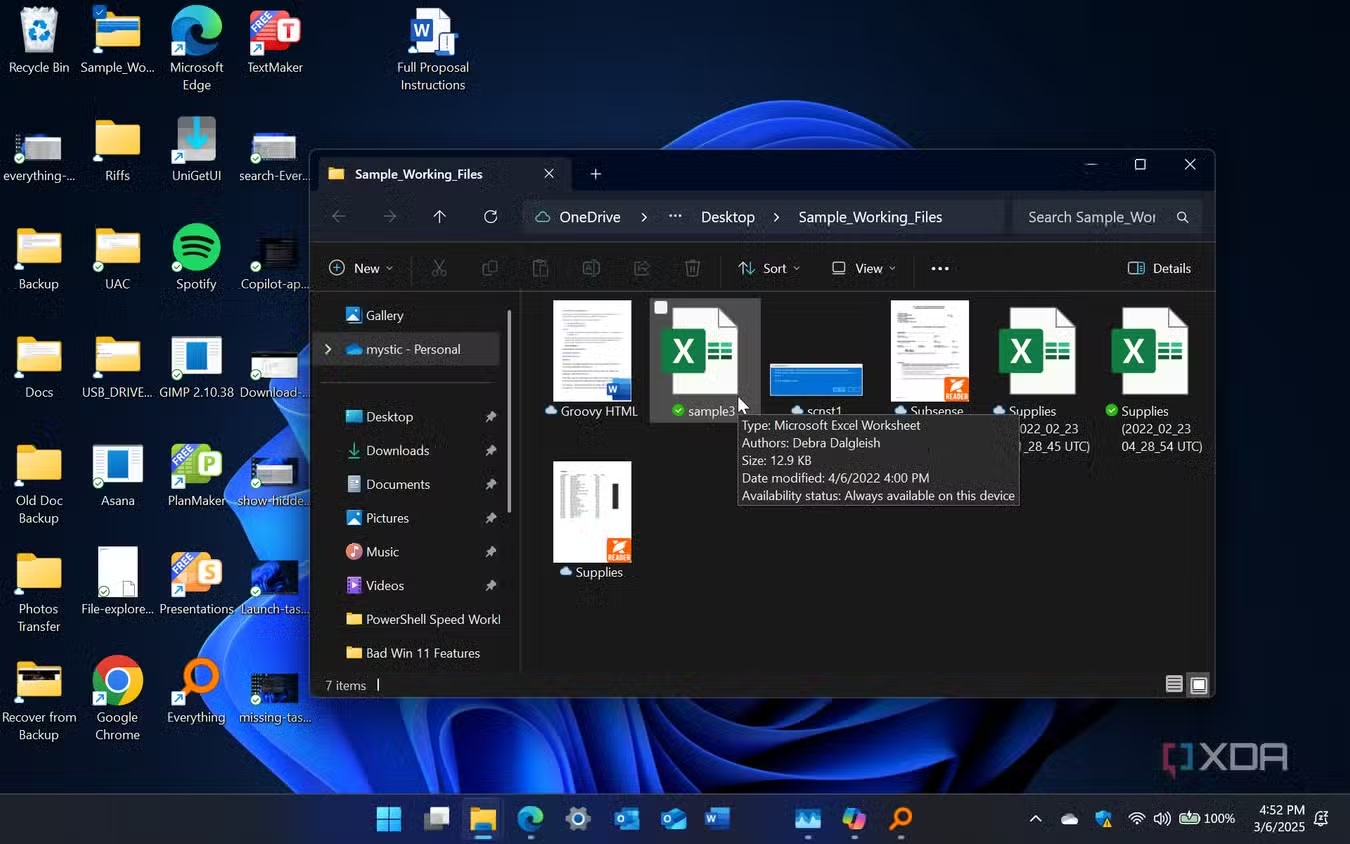
Creating a New Value
Steps to Add the Setting
- Right-click in the empty space
- Select New
- Choose String Value
- Name it: FolderType
Editing the Value
- Double-click the new entry
- Enter NotSpecified in the value field
- Click OK to save
Restarting the System
After completing the steps:
- Restart your PC, or
- Restart Windows Explorer process
This allows changes to take effect.
Expected Improvements After the Change
Applying this fix Windows File Explorer slow performance tweak can lead to noticeable improvements.
Performance Benefits
Users may experience:
- Faster folder loading times
- Reduced lag when opening directories
- Smoother navigation between files
- Fewer delays in large folders
System Behavior Changes
After disabling the feature:
- Folders may use a default view
- File organization will be more uniform
- Manual view settings may be required
Trade-Offs of Disabling the Feature
While performance improves, there are minor trade-offs to consider.
What You Lose
- Automatic folder view customization
- Smart detection of file types
- Tailored folder layouts
What You Gain
- Improved speed
- Reduced background processing
- More consistent File Explorer behavior
For many users, the performance benefits outweigh the visual customization features.
Who Should Try This Fix
The fix Windows File Explorer slow performance solution is most useful for:
- Users with large file storage systems
- Older or mid-range PCs
- Systems experiencing frequent File Explorer lag
Additional Ways to Improve File Explorer Performance
Beyond this registry tweak, other optimizations can help improve speed.
General Optimization Tips
- Keep Windows updated
- Reduce startup programs
- Clear temporary files
- Avoid overly large desktop folders
Hardware Considerations
Performance can also improve with:
- SSD upgrades
- Increased RAM
- Regular system maintenance
FAQ Section
What is causing Windows File Explorer to run slow?
It is often caused by background folder scanning and system resource usage, especially with large directories.
Is it safe to disable Folder Type Discovery?
Yes, but it requires Registry editing. Backing up settings is recommended before making changes.
Will this fix work on Windows 11?
Yes, it applies to Windows 11 and may improve File Explorer performance.
Do I need technical skills to apply this fix?
Basic computer knowledge is helpful since it involves the Registry Editor, but the steps are straightforward.
Conclusion
The fix Windows File Explorer slow performance method through disabling Folder Type Discovery is a simple but effective tweak for improving system responsiveness. While it reduces automatic folder customization, it can significantly enhance speed and stability, especially for users dealing with large numbers of files. For many Windows users, this trade-off results in a smoother and more efficient file management experience.
Click here for more news